Scheduling workflows using the Data Studio REST API in version 2

In v2.0 of Data Studio, the REST API has changed from v1, so this original post has been updated for those changes.
Aperture Data Studio is intended to be invoked from third party schedulers , like Windows Task Scheduler, Cron or even triggered from workflows within other applications.
The method for doing this is to use the Aperture Data Studio REST API to execute a workflow from within a script, and trigger that script from the scheduler application. The script needs to ensure that it handles errors and other possible conditions from the workflow, such as successful completion but taking significantly shorter or longer than expected.
Workflow execution flow
Regardless of language and scheduler used, the logical steps to follow are
Execute workflow and wait for it to complete
  Is the state COMPLETED?
  Check any other conditions like time to complete or step results
    All OK
      Report successful completion
    Not OK
      Report workflow execution failure
  Is the state is FAILED?
    Report a workflow execution failure
Powershell Example
We can use the logic above to run multiple workflows in parallel and chain workflows together to execute after one another. For example, if I wanted to:
- Execute "Workflow 1" and wait until finished then
- Execute "Workflow 2", "Workflow 3" and "Workflow 4" at the same time and wait for those all to finish and then
- Execute "Workflow 5" and "Workflow 6" at the same time and wait for those to finish, and then
- Execute "Workflow 7"
The execution plan would look as shown below, with each set of parallel workflows a separate phase.

We have implemented an example of this in Powershell. The script is attached below and would be executed as shown below.
>Powershell {path}\apertureExecuteWorkflowv2.ps1 -environment {environment} -phasesWorkflows @({workflows phase 1}), …, @({workflows phase n}) -token {API Token}
Please note that {path} needs to be the full path to the script.
An example execution is shown below.
Powershell .\apertureExecuteWorkflowv2.ps1 -environment default -phasesWorkflows @('wf1'), @('wf2'), @('wf3a','wf3b') -token {token}

Prerequisites to execution via the REST API
Generate an API Key
The first step is to create an API Key for the user. This can be done by selecting the user icon, then Manage API Keys

Create a new API Key, giving it a name and number of days to expiry.
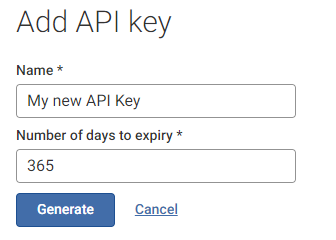
This key can then be used to access the API and will have the same level of access as the current user in the current environment.
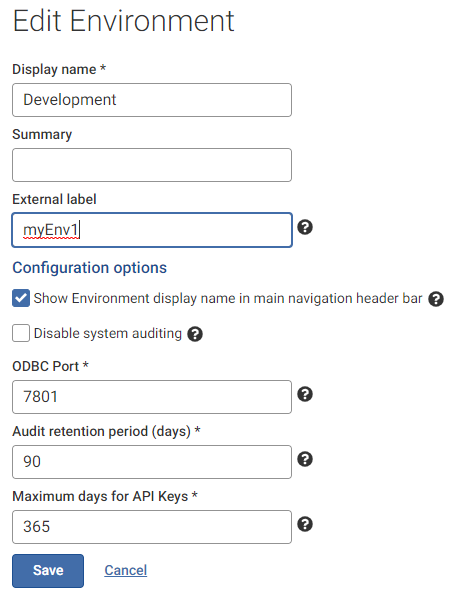
Create external labels for the environment and workflows
In order execute workflows from the REST API, they need to have an external label associated with them. Viewing the details of the workflow the external label can be added and does not need to be the same as the display name. In the example below, the workflow name is "Demo workflow", but the label I will use to call it is "wf1". The label must be unique in the environment.

The same external label needs to be added to the environment. However only the super admin (adminstrator) user can edit this.
Comments
-
@Carolyn you need to log in as the administrator, which should normally take you to your list of environments first, in the environment management panel. Select options for the environment you want to edit, and then edit.

If you are in an environment, you can select "manage environments"

If you are not logged in as the administrator account, this will just say "switch environments"
The environment has an external label, as each API key is assigned permissions to only one environment. You need to explicitly use that environment label and API token in the Authentication header.
The workflow labels are different, as they vary per execution depending on what you want to run. The authentication credentials shouldn't change.
0 -
I got a question recently about using this workflow execution script with a Data Studio instance configured with SSL/TLS. To do this, in addition to changing the server name and port name variables, e.g:
[string] $server = "aperturedatastudio.live.local",[string] $port = "443",You'd also need to change the protocol to https on line 156. So change:
$apertureServerRoot = "http://" + $server + ":" + $port + "/api/" + $tenancyID + "/"to
$apertureServerRoot = "https://" + $server + ":" + $port + "/api/" + $tenancyID + "/"0
