Applying a trust certificate for licensing

Aperture Data Studio periodically calls out to Experian licensing server to ensure it is always up to date with the correct details. To ensure Aperture Data Studio is able to connect to the licensing server from your environment requires a trust certificate to be applied.
Steps to apply the entitlement certificate
A) Download the new certificate using your browser
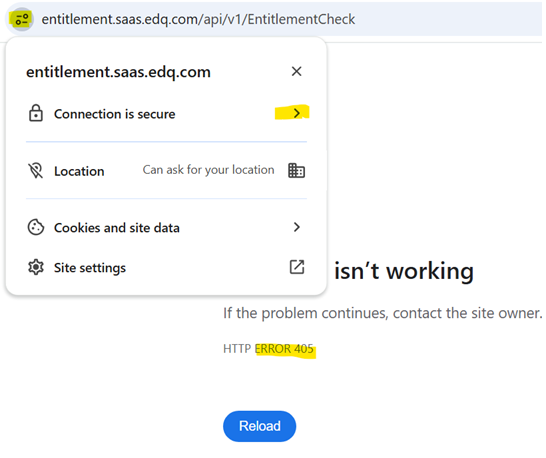
- enter the licensing server API end point 'https://entitlement.saas.edq.com/api/v1/EntitlementCheck' into a web browser (the page will return HTTP ERROR 405) >> click the 'site information' button next to the URL bar then >> 'Connection is secure' then >> 'Certificate is valid / Show certificate'
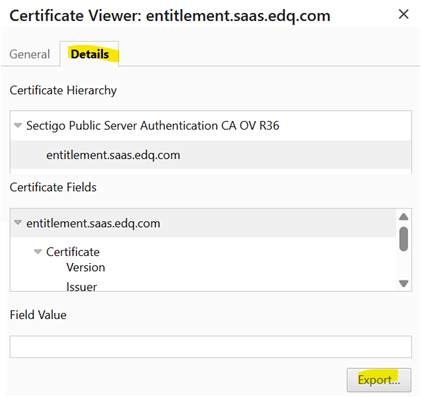
- In the Certificate Viewer click Details tab then Export to download it. Check that the downloaded file has the extension .crt and if it not then manually add this extension
B) Apply the certificate
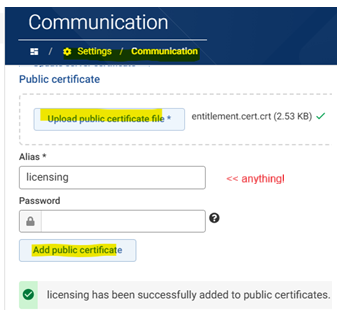
In Aperture, go to Settings > Communication, Upload the public cert file, enter any value as Alias, Add:
Alternatively, if there are issues accessing the UI to apply the certificate or if you have moved the location of your keystore then it is possible to apply a certificate using the Java Keytool utility bundled with Aperture:
- Locate the keystore location, e.g.: \ApertureDataStudio\certificates\cacerts
- Run the standard keytool command to import the certificate: keytool -import -trustcacerts -alias CloudLicense -file C:\certificates\entitlement.cert.crt -keystore cacerts
- When prompted Enter keystore password:, enter "changeit".
- When prompted Trust this certificate? [no]:, enter "yes".
Using the keytool will also work for Find duplicates standalone, the default keystore location will be "%JAVA_HOME%\lib\security\cacerts". Once located follow the remaining steps above.
C) Refresh license information
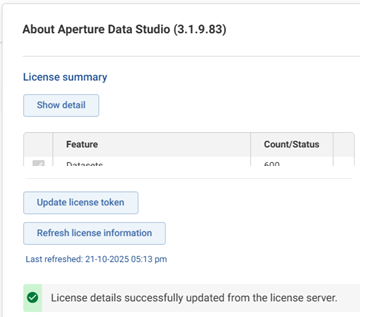
Once certificate has been applied, go to top-right corner then 'About Aperture Data Studio (version)' then click 'Refresh license information'
=====================================================
Temporary option - Client mode
If the certificate cannot be applied immediately or there are any connectivity issues then you can use Client mode by going to the Update license page and submitting your token. Once it fails to connect successfully a checkbox to be shown to Temporarily use client mode:
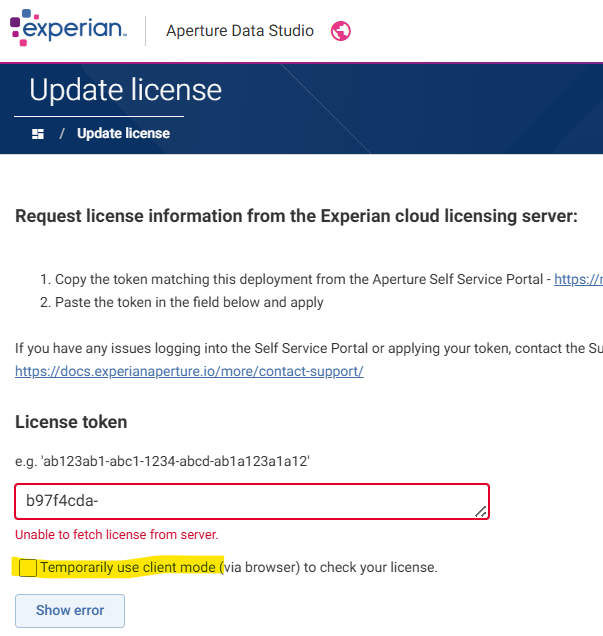
This option is also available by going to Settings >> System >> license check mode Server/Client
to enable Client mode or revert the change once the certificate has been applied successfully. Another option is to add System.cloudLicenseFetchMode=CLIENT to your Server.Properties
This option will update Aperture Data Studio via your web browser rather than the API, so requires a users to login periodically, which is why it is only suggested as a temporary option.