Connecting to the Aperture Data Studio API with the Autonomous REST (AutoREST) JDBC Driver

Why manage Aperture with Aperture?
Aperture Data Studio holds a great deal of operational data about itself: Users, groups, spaces, jobs, datasets, sessions, functions, views, and system metrics, all exposed through its own REST API. That metadata is not available as Datasets inside Data Studio by default, which means the platform can't easily be used to monitor, audit or manage itself.
The Autonomous REST (AutoREST) JDBC driver closes that gap. It lets Data Studio call its own REST API (or any other REST API) and treats the JSON responses as relational tables, in exactly the same way as any other External System source. Once that's wired up, the operational data becomes just another Dataset: Joinable, schedulable, and usable in workflows, views and dashboards like anything else in the platform.
In practice, this unlocks use cases such as:
- Monitoring and email alerting on unusual login activity via the Events table
- Dashboards showing all users' admin access, to check that permissions aren't too broad
- Analysis of job execution times, alerting if certain jobs run in parallel or overrun
- Finding which Datasets (by row/column count) are consuming the most disk space
- Dashboards built on the Metrics endpoint to monitor CPU usage and page responsiveness
- Building a catalogue of all Datasets in a ‘master data’ space (source, columns, types, row counts, summaries) so other users can see what Enterprise Data is available to request access to
- Tracking dependencies between exportable objects (workflows, views, datasets) ahead of migrations or space clean-ups
The setup is driver configuration rather than custom development, which means most of this is achievable without writing a line of application code.
How it works
The AutoREST driver is a generic JDBC driver that can talk to any REST API. It's configured through a plain-text .rest file: a JSON document that lists each API endpoint you want to expose, and describes how to map the JSON response into one or more relational tables.
Three things make this mapping non-trivial for a real-world API like Data Studio's:
- Nested arrays. Many endpoints return arrays inside arrays. For example, /spaces returns a list of Spaces, each with its own array of user/group permissions. The driver normalizes each nested array into its own child table, related back to the parent by a generated key. You'll see this pattern repeatedly in the config file below (angle-bracket names like <spaces_permissions>).
- Typed columns. Every field needs an explicit SQL type (VarChar(n), Integer, Double, Timestamp, GUID, Boolean) so the driver can build a proper relational schema. There's no implicit type inference.
- Authentication. Aperture's REST API authenticates via an API key tied to a specific environment (via the environment external label). The .rest file and the External System's connection settings both need to agree on how that key is presented.
Once the .rest file is deployed and the External System is configured, Data Studio treats each top-level key in the file (events, sessions, spaces, datasets, and so on) as a separate table you can load exactly like any other External System Dataset, including scheduled auto-refresh.
Setting up the connection
Step 1: Create an API key
Create an API token to authorise the REST API calls.
Both the API key and the REST calls it authorizes are environment-specific. If you manage multiple environments (e.g. Dev/Test/Prod), you'll need a separate key per environment. Scope the key to Read access only for the endpoints you need.
Step 2: Test that you can get the API to work
In this step you’ll use the API you’ve just created to make a couple of test calls to Data Studio’s API using the interactive Swagger API spec.
Browse to the Data Studio deployment’s API page, http://<your hostname>/api/docs/index.html, hit Authorize, enter your environment label and API key, and then ensure you can make the relevant API calls here.
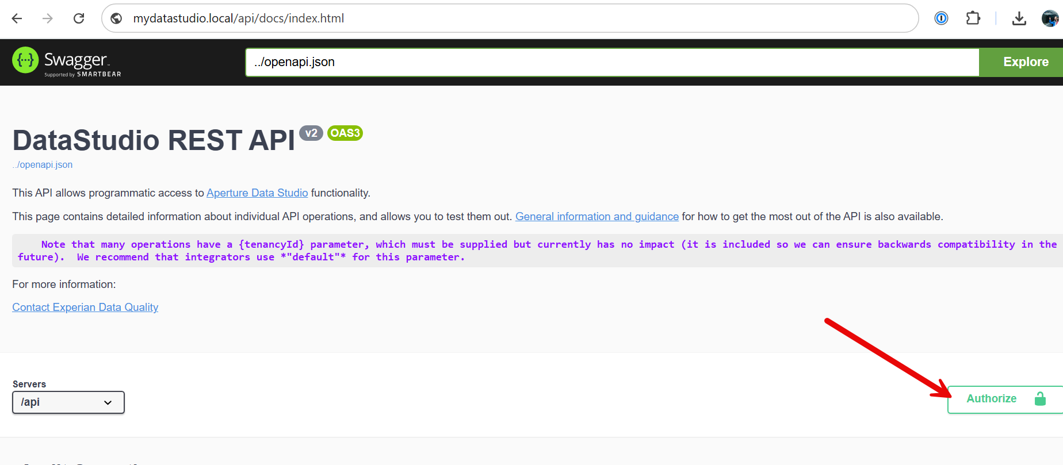
For example, if you will want to create a dataset of all the Users in your Data Studio instance, call the /users (List Users) endpoint and ensure you get a correct response.
Note that any API test client, such as Postman or Insomnia, could also be used to make these test calls.
Step 3: Create the External System in Data Studio
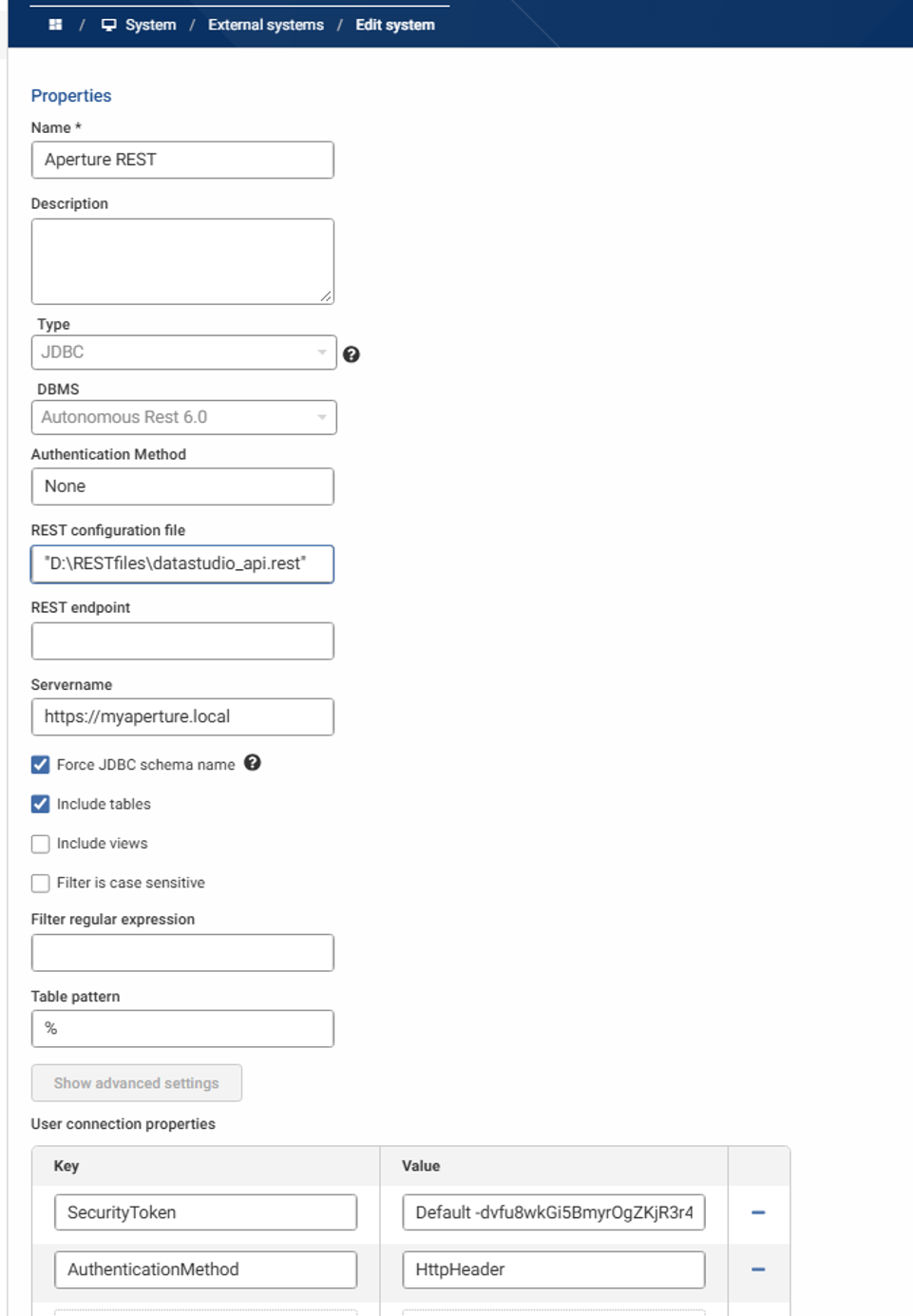
Now in the Data Studio UI you can create a new External System using the Autonomous REST connector. Configure it as follows:
Setting | Value |
|---|---|
Servername | The hostname of the Data Studio server, e.g. https://<hostname> (taken from your API docs URL, https://>hostname</api/docs/index.html) |
REST config file | The path on the Data Studio server where the .rest file will be dropped |
Authentication | None. Auth is handled via the API call header, not the driver's own auth |
Then add two user connection properties:
Property | Value |
|---|---|
SecurityToken | "<environment_label> <API_key>" The same format used to authenticate directly against the REST API |
AuthenticationMethod | HTTPHeader |
You'll also need to create a Credential for the External System to use, but it can hold a dummy value. The real credentials live in the External System config itself, not the Credential object.
The External System should look like this:
Step 4: Deploy the prepared .rest config file
A default Data Studio .rest configuration has already been created, mapping the more commonly used API endpoints. You can find it linked below for download.
Data Studio API AutoREST config
Drop the .rest file at the path you set as the External System's "REST config file" location. If you've downloaded it as a .txt, rename it to remove the .txt extension before deploying it. The driver expects a .rest file.
Securing the API key
By default the API key sits in the External System's connection properties, visible in the Data Studio UI to anyone who can see the External System config. If you'd rather not expose it there, you can move authentication into the .rest file itself instead.
Add the following to the top of the .rest file:
|
|---|
Then, for each table you want to authenticate this way, add a #headers block:
|
|---|
Any header can be passed this way, it isn't limited to Authorization.
Data Studio .rest configuration
The config file below is the current version in production use, covering every endpoint the community has asked for across this thread. Each top-level key becomes a Dataset table in Data Studio once the file is deployed and the tables are loaded.
This version of the .rest file has a subset of the full Data Studio API mapped. This includes:
Core admin / monitoring endpoints
Table | Endpoint | Notes |
|---|---|---|
events |
| Login/logout and object-level audit events. Good source for unusual login-activity alerting. |
sessions |
| User session start/end times. Note: endDate can be null even for ended sessions. |
spaces |
| All Spaces plus a nested permissions array (flattened to spaces_permissions), useful for auditing who has access to what. |
jobs |
| Job execution summaries, with a nested stepDetails array (jobs_stepDetails) for per-step timing and status. The basis for parallel-job or long-running-job alerting. |
datasets |
| Full Dataset metadata: source, tables, columns, batches, row counts, and (as of the latest version) objectTags, mapped to a DATASETS_OBJECTTAGS child table. |
users |
| User accounts, roles, last login date (date only, not a timestamp), disable state. |
usergroups |
| User groups and their members. |
Datasets, functions, views, external systems and credentials
Table | Endpoint | Notes |
|---|---|---|
datasets |
| Full Dataset metadata: source, tables, columns, batches, row counts, and (as of the latest version) objectTags, mapped to a DATASETS_OBJECTTAGS child table. |
functions |
| Function metadata including parameters and extended parameters. |
views |
| Basic View metadata (name, space, status, shared/interactive flags). The API doesn't currently expose the fuller metadata available for Datasets. |
External systems |
| List of configured External Systems. |
Credentials |
| Credentials for a specific External System (ID 5 in this example). Change the ID in the path to match your own External System. |
Exportable objects (per-space dependency analysis)
This endpoint is called per-space (the space ID is embedded in the path), and is useful for understanding dependencies between objects before a migration or clean-up. The example below is for Space 6:
|
|---|
This returns three related tables: the objects in the space, and two child tables (joinable on objectType and position) describing dependencies and forced dependencies.
Metrics and disk usage
The metrics endpoint returns a single, very wide table (486 columns in the current schema) covering JVM, application and system-level metrics: CPU usage, heap/GC statistics, per-page response times, repository action timings, and disk space across the repository, resource, temp and export volumes. It's the basis for CPU-usage or page-responsiveness dashboards.
The disk_metric mapping (from metrics/disk.metric) extracts disk-specific figures into a cleaner, multi-table relational structure that needs joining rather than one enormous row. Different metric names (call metrics/list to see them) will need different mappings if you want to extract them individually.
Full .rest file listing
The complete file, exactly as deployed, is available above. Copy it into a .rest file (removing any .txt extension) and update the exportableobjectsspace6 and credentialssystem5 keys/paths to match your own space and External System IDs.
Common errors and how to resolve them
SSL handshake failed / PKIX path building failed
Symptom: tables load with zero rows, and the Data Studio log (datastudio.log) shows an error similar to:
|
|---|
This is a certificate-trust error: Data Studio is acting as a client of its own API, but doesn't trust its own server certificate. It has the certificate in its keystore but not its truststore. This is common with certificates issued by a private CA.
To fix it, import the public certificate into the truststore Data Studio uses. To do this, upload a new Public Certificate via the UI in Settings > Communication.
Alternatively, you could use the Java keytool to import directly into the relevant cacerts.
400 Bad Request on /datasets (or other endpoints)
If the direct REST call otherwise looks correctly constructed but returns 400 rather than the 401 you'd expect from a bad key, check the “environment external label” used in your SecurityToken. This error reproduces reliably when the External System config uses the label "default", but no environment with that external label actually exists in the instance (for example, if the "default" environment has been renamed or deleted).
Fix: confirm that the environment external label embedded in the SecurityToken matches the external label of the environment in which the API key was actually created, not just any environment, and not assuming “default” still exists. |
|---|
Separately, double-check the table name you're querying against. The underlying Data Studio table is DATASET (singular), not DATASETS. Using the wrong table name in a downstream tool produces a SQL-level 400 that looks similar but is unrelated to the environment-label issue above.
401 Unauthorized in Swagger
If Swagger UI returns 401 for an endpoint you believe your API key covers, confirm you've actually authorized the session in Swagger itself (there's a separate “Authorize” step from just holding a valid key). This is the most common cause.
Extending the configuration
You can extend the .rest file to map new endpoints, or create your own .rest file, using the AutoREST tools. The AutoREST driver ships with its own Configuration Manager and Composer tools, which are useful for building or testing a .rest mapping against any REST API (not just Aperture's).
To run the composer, either
- Double-click on the driver file DSautorest.jar file, which you will find as part of the Aperture Data Studio database, eg in D:\ApertureDataStudio\drivers\jdbc\ or similar. This will pop up a web app, and you can enter "arc.html" in the browser, or
- Run
javaw -jar DSautorest.jar --design
The Composer page lets you build the field mappings and auth interactively and generates both the .rest file and the JDBC connection string for you.
Known limitations (at time of writing)
- Sessions can show a null
endDateeven after a user has logged off. This is confirmed present in the underlying repository database, not just the API, so it isn't fixable from the AutoREST side. - The Users endpoint reports Last login as a date, not a timestamp, which limits its usefulness for "active in the last 24 hours" style queries.
- Views metadata is limited: you can get sharing information for a specific View by ID, or manage sharing/inclusion, but there's currently no bulk "list views with full metadata" equivalent to the Datasets endpoint.
- There's no File Size field on the Dataset endpoints. A practical workaround is to shell out a folder-size listing on the server and join it back to your dataset table by UUID:
|
|---|
- There's no direct "pageviews" or per-object usage/download-count endpoint. The Audit Report tracks data downloads and object edits/updates, but not views where nothing changed. "List exportable objects in a Space" and the individual "List objects" APIs are the closest approximation for counting objects per space.
- For epoch-to-timestamp conversion (needed for the Jobs API's start/end times), there's a ready-made reusable function in the Community Function library: Convert epoch date/time to standard date/time
Where to go for help
This configuration and its worked examples were developed collaboratively on the Experian Aperture Community forum. If you hit an issue not covered here, or want to request a new capability (such as fuller View metadata, file size on Dataset endpoints, or object usage tracking), the best next steps are:
- Post your question here.
- Search the community for more information on the AutoREST driver configuration.
- Raise product gaps on the Ideas Board so the Product team can review and comment.