Dynamic Workflow Scheduling Based on Multiple Datasets & Sources

Scenario
Trigger automations only when all the required dataset load events arrive within the defined validation window.
As part of data migration activities and ongoing operational data quality processes, data often needs to be loaded into Aperture Data Studio from multiple source systems and environments.
In many implementations, these data loads are fully automated. Once all required datasets have been loaded successfully, a downstream process such as a workflow or scheduled job must be triggered automatically. This requires a reliable triggering mechanism that can operate consistently, regardless of where the source data originates or how it is delivered into Aperture Data Studio.
A key challenge is that individual datasets may not become available at the same time. Several factors can influence when a load completes, these include:
- Network latency between source and target environments
- Differences in dataset record counts and processing time
- Source-system scheduling and automation windows
- Variations in ingestion or transfer methods
- Temporary delays or dependencies within upstream processes
As a result, triggering a downstream process immediately after a single dataset arrives can lead to the process executing before all the required data is available.
Solution
Enable a “buffer” period for all events to be complete, then execute accordingly.
To address this, it’s as simple as setting up the trigger logic to account for the arrival of all required datasets within a defined “Period” based on a per minute basis.
Once the required load events have been detected and the trigger conditions are met, the corresponding schedule or downstream process can be executed.
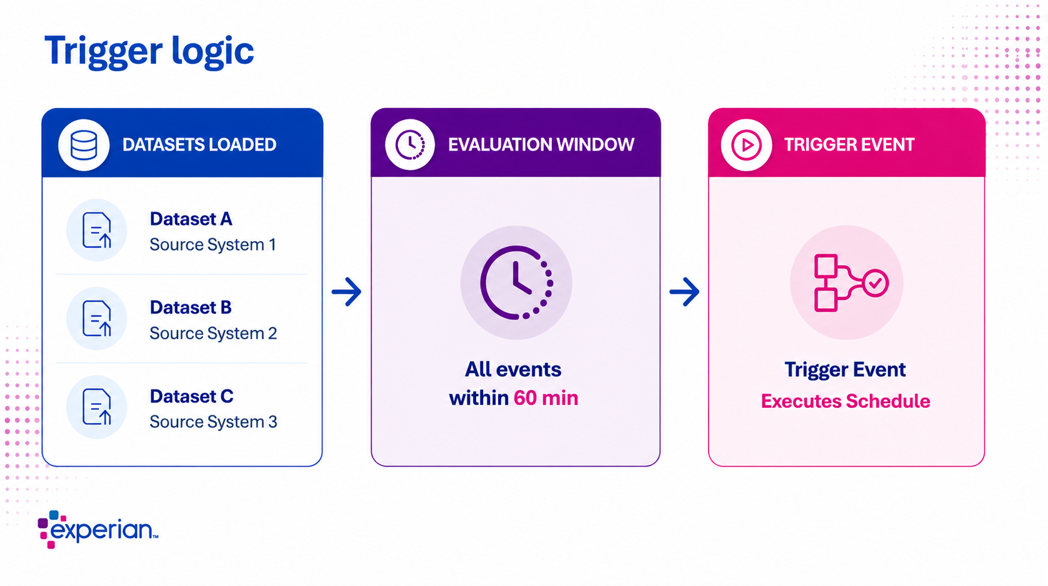
Automation Event Configuration
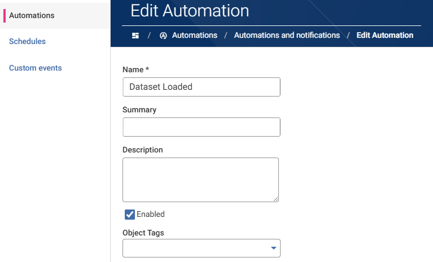
| Create an ‘Automation’ for when multiple datasets are all loaded, triggering the downstream schedule as a result. |
|---|---|
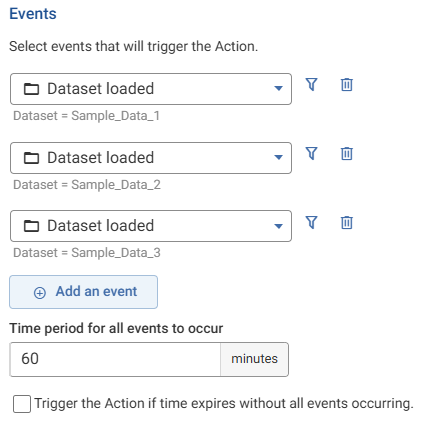
| This example lists three “Dataset loaded” events and a 60-minute window for all events to complete successfully. If all events are down within the first 3 minutes, it will proceed as expected. If it takes longer than the 60-minute buffer, the Automation would “fail” and prevent the trigger from proceeding. |
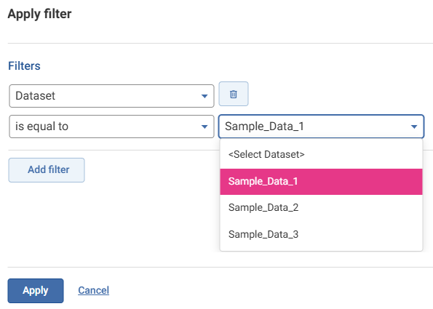
| Ensure you select the correct dataset as part of the event filters. We will need three separate events as we’re taking into account three different data sources. Each event can include one or more filters. |
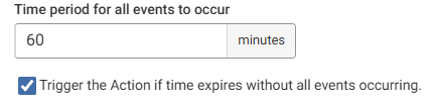
| Depending on the requirements, the automation may not require all sources to be loaded. If this is the case, you can select “Trigger the action if time expires…” as this will allow the events to proceed regardless of whether all variables are met or not. |
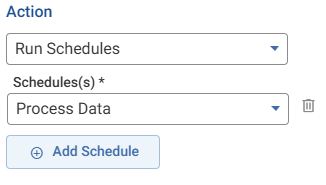
| Once event variables have been met, you can now trigger the intended action as per normal. This instance we would be running a schedule. |