Databricks JDBC driver for read and write workloads

Aperture Data Studio supports both the JDBC v2 (Simba / legacy line) and JDBC v3 (Databricks OSS / current and future line) drivers. These are "third-party" drivers which must be downloaded, but which will have some configuration support in the user interface.
Databricks (via the JDBC driver) is also a supported system for pushdown processing in Data Studio, an optimization feature that executes supported workflow steps directly at the source.
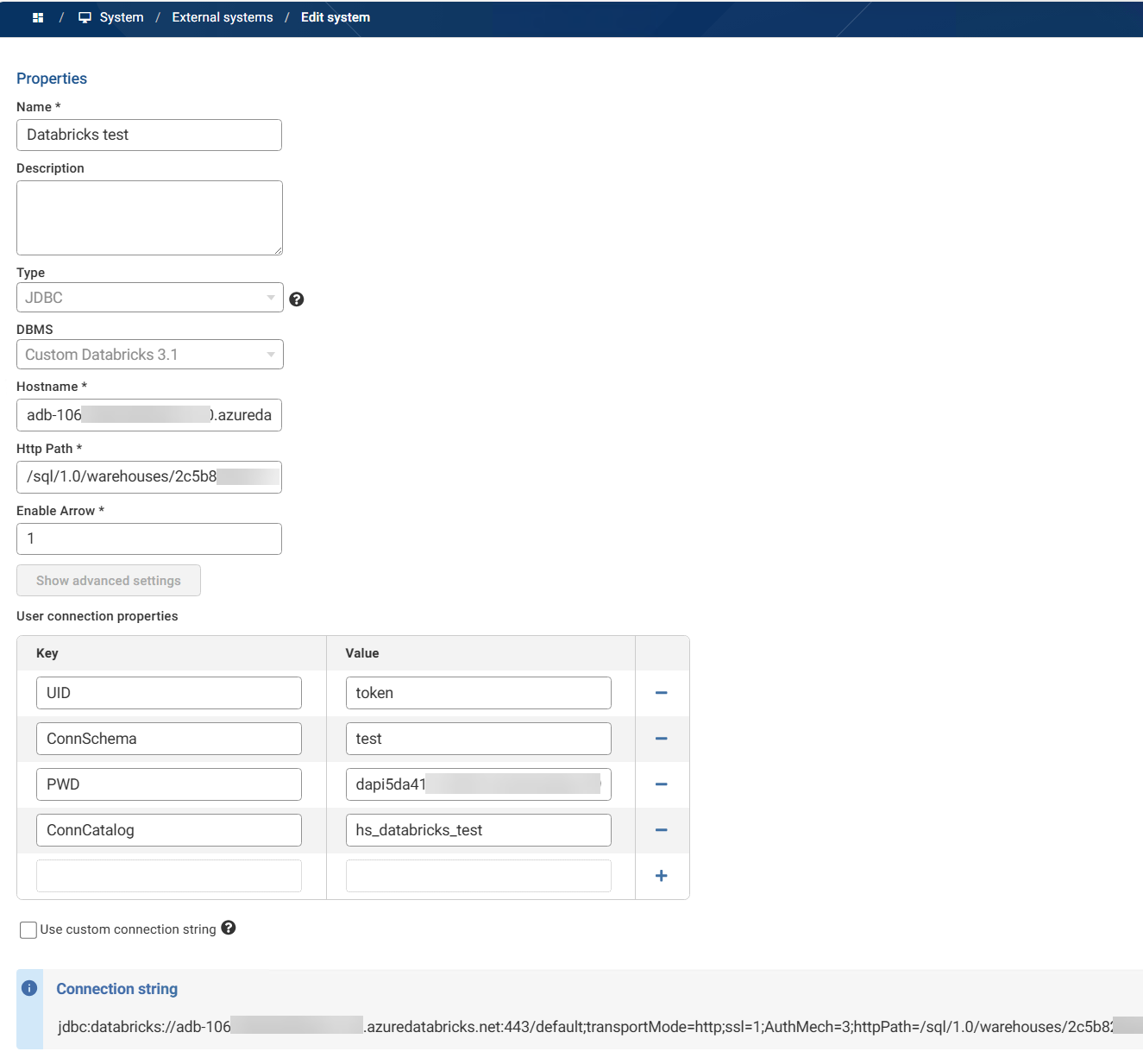
In my test environment I've configured the 3.1.1 driver in Data Studio with the following settings:
What you need to know about performance
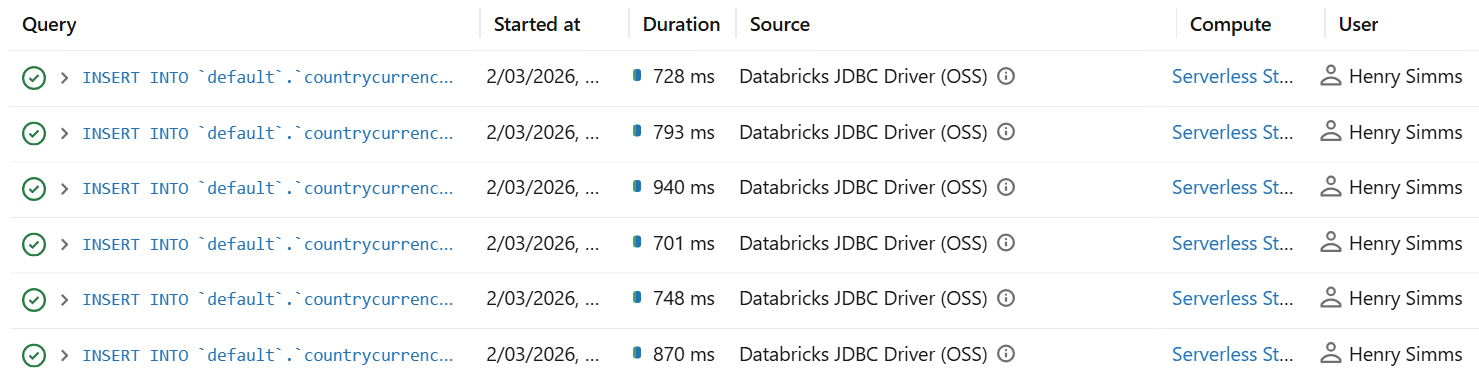
It's important to know that while JDBC works very well for SELECTs in Databricks (loading data into Data Studio), its row‑wise execution and lack of effective batching means it inherently performs extremely poorly for INSERTs (export data from Data Studio back to Databricks).
In my testing, individual row inserts average almost 1 second, so the only practical scenario where you'd use this is for very small trickle writes (e.g., writing a handful of rows) where simplicity matters more than throughput.
For reads, I have loaded a test table of 1 million records into Data Studio from Databricks in around 25 seconds.
Recommended approach for writes
An efficient solution for inserts would be to replace row‑wise JDBC inserts with staging files in cloud storage, then bulk‑load with COPY INTO (SQL):
- Land data as files (CSV/Parquet/JSON, etc.) in cloud storage (eg ADLSgen2/S3/GCS)
- Then run COPY INTO command to load into a Delta table. COPY INTO is designed for bulk & incremental ingestion.
Both these steps can be completed in Data Studio:
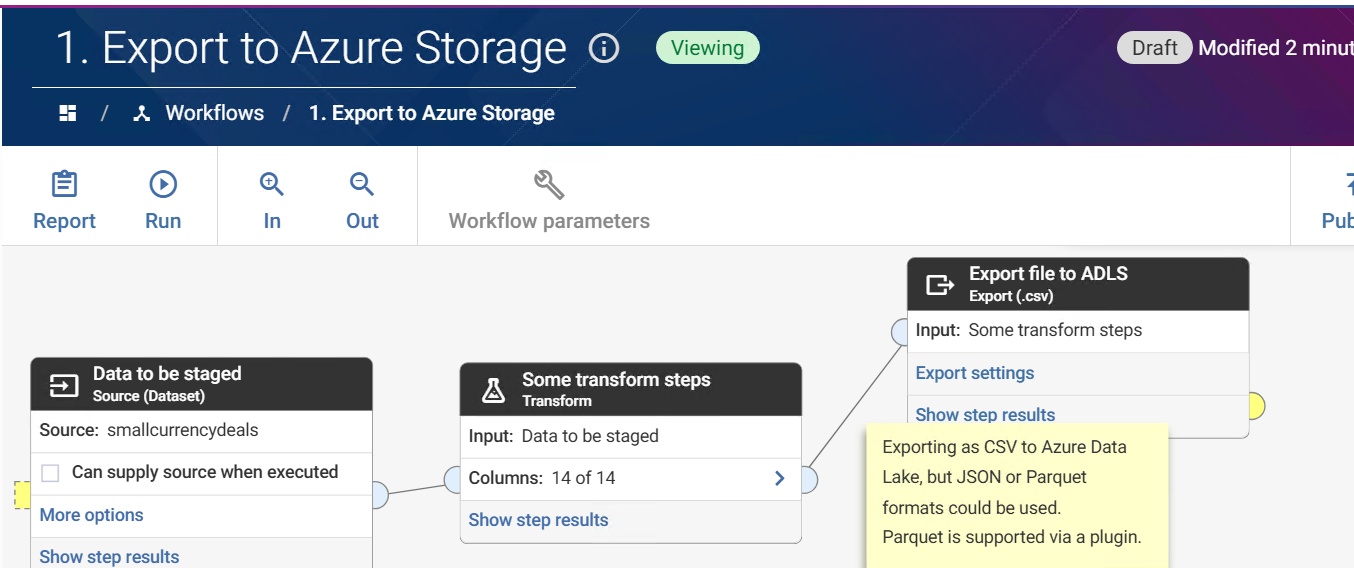
1. Export to cloud storage is natively supported, and can be completed via an Export step:
2. The COPY INTO command could be achieved via a scheduled Databricks job, an event trigger in Databricks, or using the Databricks Auto Loader rather than COPY INTO (best for large numbers of small files). But you may also choose to trigger the COPY INTO from Data Studio via the Export step's pre-SQL.
In my set-up I use the following Pre SQL similar to:
COPY INTO my_databricks_test.test.smallcurrencydeals FROM 'abfss://my-storage@mystorageaccount.dfs.core.windows.net/staging/smallcurrencydeals/export.csv' FILEFORMAT = CSV FORMAT_OPTIONS ( 'header' = 'true', 'inferSchema' = 'false' );
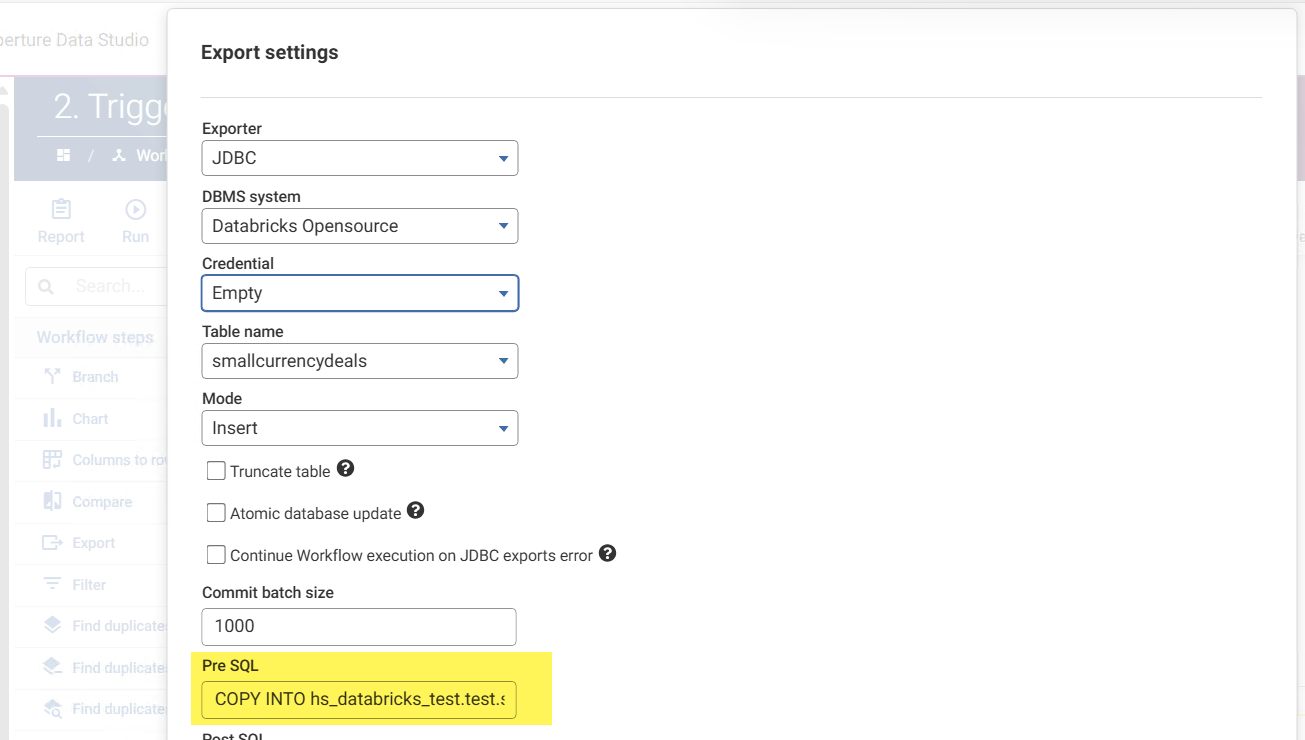
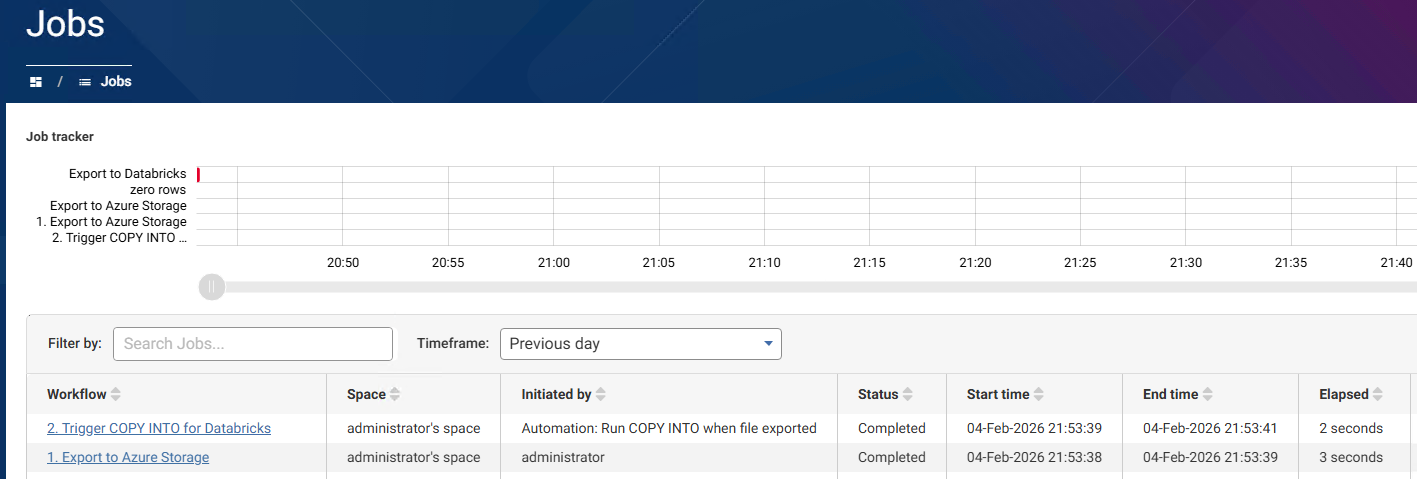
By carrying out this export with a dataset that has no rows, and using an automation to trigger the workflow to execute follow the staging file export, I cause the staged file to be added to my Databricks table very efficiently: