Using ❄️ Snowflake with Aperture Data Studio

Snowflake is a popular cloud-based data warehouse that is used by many organizations to store, process, and analyze large volumes of diverse data.
Connecting Snowflake to Aperture Data Studio
Aperture Data Studio can import data and metadata from file stores, CRMs and databases, including Snowflake. To connect to Snowflake requires a JDBC driver. If you have JDBC drivers included in your Aperture license then Snowflake is an automatic option and if not then you can use and configure a custom JDBC driver from any provider including Snowflake's own.
Adding an External system gives three different authentication options for Snowflake (or your custom driver as an option if applicable). The basic is for username and password (which Snowflake is EOSL), so suggest selecting either OAuth or KeyPair depending on your security preferences:
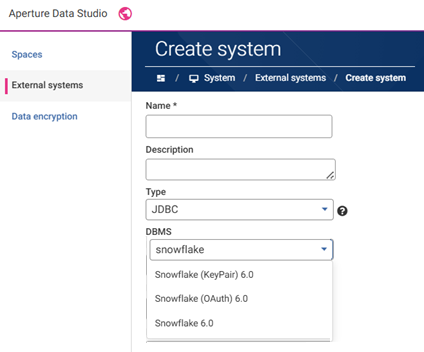
Note: You might want to have multiple External systems defined that have access to different schemas and table data, some that can only read data and others that can write back to Snowflake. See below - controlling access - for who can use an External system in Aperture.
Tracking your Snowflake usage
It is now possible to segregate the Snowflake usage that is coming from Aperture Data Studio. This is done using the value 'application=Experian_Aperture', which is automatically added to your External system jdbc connection string (if you are using the latest Aperture drivers) or can be appended manually in the Create/Edit system screen if necessary:
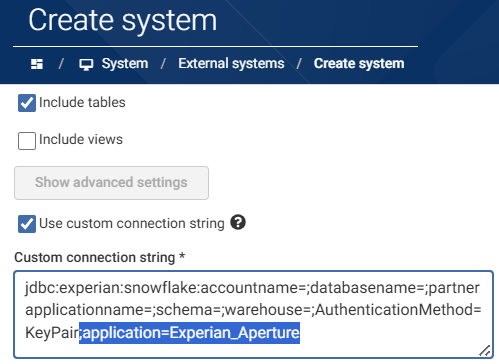
Any action in Aperture Data Studio that triggers activity in Snowflake, such as a Dataset refresh or execution of a Pushdown processing Workflow will be sent to Snowflake with the Aperture tracking value.
The benefit of this is that you can assign a Snowflake Warehouse to this tracking value so that usage is shown separately. From there you can setup a warehouse resource monitor to ensure Aperture users/automations are not spending too many credits, alert account admins or even suspend usage if it ever goes beyond the set threshold.

Controlling access
An External system can have mulitple different Credentials. Each can give access to individual users or groups of users with the following permissions:
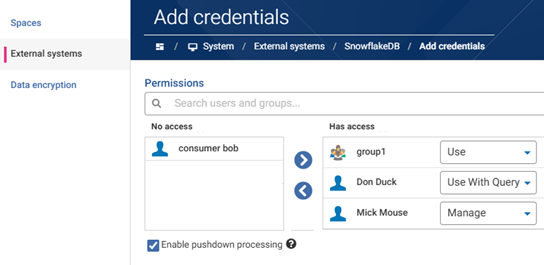
- Manage - add/remove access of other users, update users credential permissions and use the credentials
- Use - import Snowflake tables and database views to Aperture Data Studio. Use the Workflow Export step to send data back to Snowflake - depending on any restrictions set in Snowflake
- Use With Query - an additional option for more technical users to enter a SQL query (rather than selecting an entire database table) to restrict data imported to specific tables and rows or join multiple tables, aggregate, transform data before it is loaded
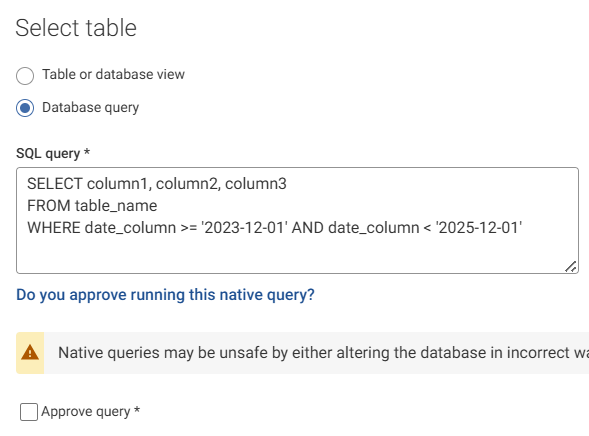
The checkbox option shown to customers with Pushdown processing licensed is to enable these users to use the functionality (on the Snowflake data these credentials give access to).
Note that both External system connections and Credentials can be created and managed programatically using APIs
Processing billions records in Snowflake with Pushdown processing
Pushdown processing combines the ease of use of Aperture Data Studio with the processing power of Snowflake. It allows users to collaborate utilizing the same drag and drop canvas and Gen AI functionality to create Workflows and Functions, but without needing to move the data from Snowflake to Aperture.

Workflows look the same except that steps utilizing Pushdown processing are identified. Note that in this example the Source step is using a Dataset containing only the Snowflake table schema/column headers.
» How?
Aperture automatically coverts the Workflow users create into a SQL query and sends it to Snowflake where it is executed on the data using their huge processing power to Compare, Filter, Group, Join, Sample, Sort, Union, Profile*, Transform and Validate* data.
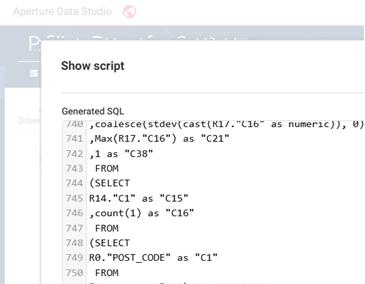
The SQL script can be complex with hundreds of lines, especially for profile statistics or validation rules. Whilst it is available to users in UI it is expected that most will not view it unless copying it to execute elsewhere or for documentation.
*Snowflake database supports most Aperture Functions, but not all. Unsupported Functions and steps are flagged to users building Pushdown workflows. It is also possible for advanced users to remap Functions if needed, discussed here:
» Why?
Aperture Data Studio's user friendly interface allows collaboration, publishing and versioning of Workflows containing complex profiling statistics, business rules and validation logic. These Workflows can be automated as required and users notified of events or data meeting specific criteria.
Utilizing the power of Snowflake expands the use cases Aperture Data Studio can be used for, such as examining transactional data containing billions of records on an hourly basis to be aware of trends or any policy rules being violated. It also means you can calculate an important value(s) in Snowflake and import them into Aperture. For example, you might want to query the average credit card limit being approved for each type of credit card offered and use these constantly changing values as part of a Realtime Workflow validation when new loans are being processed.
Check out the FAQs or ask any questions / share any feedback below