Unlock the Power of Markdown in Aperture Data Studio

Did you know Aperture Data Studio supports Markdown? This lesser-known feature can transform how you present information, making your dashboards, workflows, and catalog entries more engaging and easier to read.
Markdown enables a wide range of formatting options, including:
- Text formatting (headers, subheaders, bold, italic)
- Lists (bulleted and numbered)
- Tables for structured information
- Clickable hyperlinks
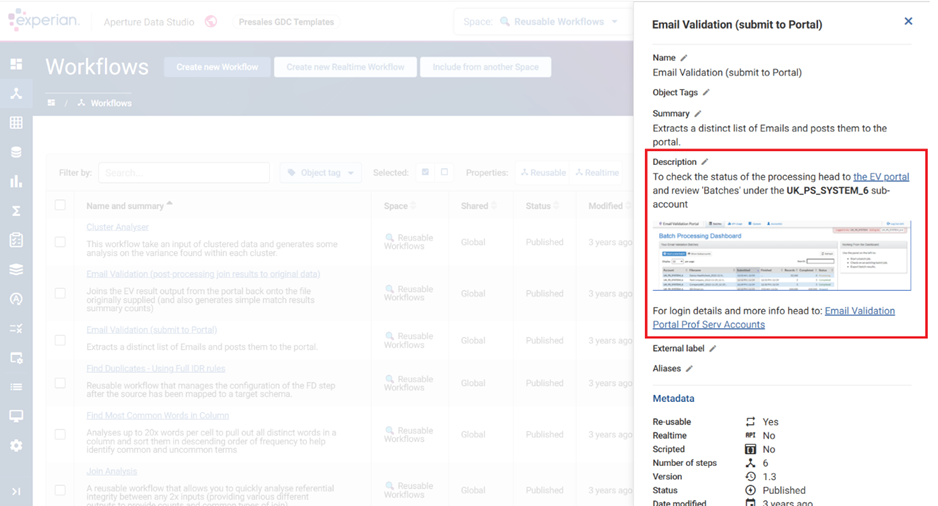
- Images (using Base64 encoding)
Where Can You Use Markdown in Data Studio?
Markdown is supported in a variety of areas across Data Studio including:
- Custom Content widgets on Dashboards
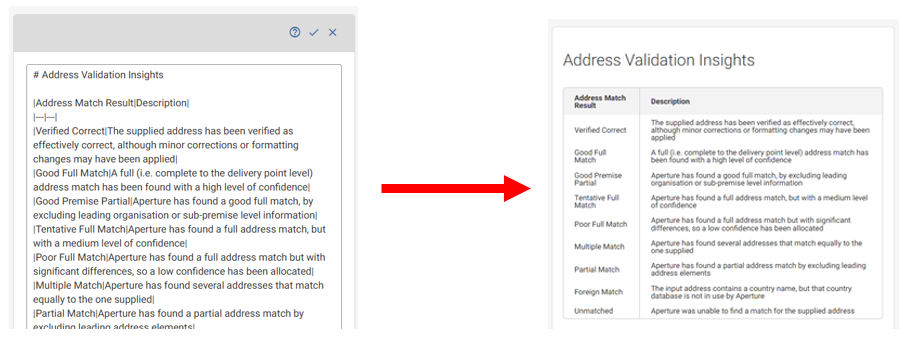
- Tooltips within the Set Cell Style function

- Workflow descriptions
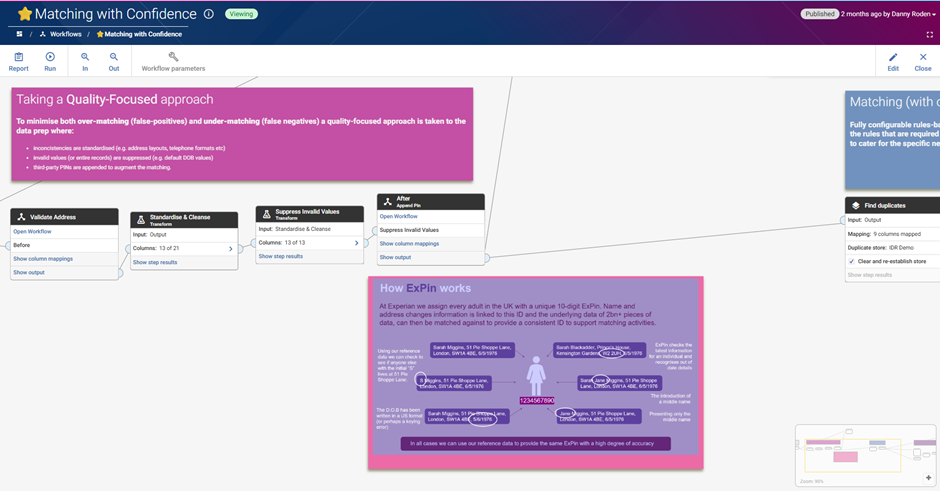
- Workflow sticky notes
- Catalog object definitions

- Catalog TextArea fields
Formatting Tips
You can find detailed tips and tricks on our documentation site here and here. (LLMs such as: Copilot/ChatGPT/Gemini/Claude are also very good at formtting text into markdown ready presentation code if you use these tools within your business).
That being the case, I do keep getting asked about images so I wanted to share a step-by-step on how to do this.
Adding Images with Markdown
- Prepare your image: Crop or resize it to an appropriate size before encoding
- Convert the image to Base64: Use a Base64 encoding tool (e.g. ) to generate the code.
- Paste the code into the supported area of the product, using the following syntax:

See below for an example that will render a festive favourite:

This simple trick allows you to embed images directly without relying on external links—perfect for creating self-contained dashboards and documentation.
Have you tried using Markdown in your workflows or dashboards? Share your favorite tips and creative uses in the comments below!